
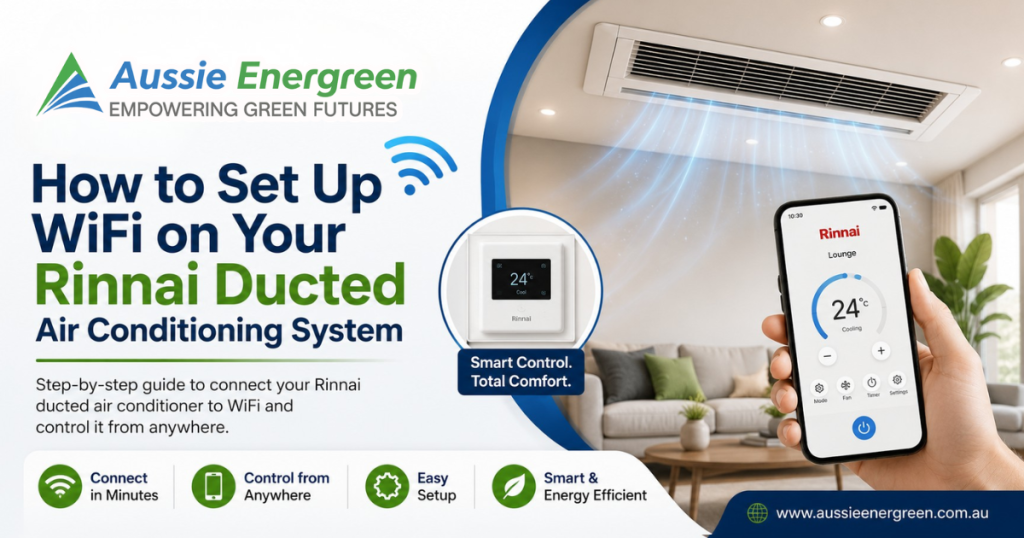
Imagine walking through your front door on a freezing Melbourne winter evening — and your home is already warm and comfortable, set to your perfect temperature. No more waiting 20 minutes for the system to catch up. No more coming home to a cold house.
This is exactly what the Rinnai Pro Series WiFi ducted air conditioning system makes possible. And at Aussie Energreen, we install and set up Rinnai WiFi ducted systems across Victoria every day.
Here’s everything you need to know about controlling your Rinnai ducted air conditioner from your phone.
What Is the Rinnai Pro Series WiFi System?
The Rinnai Pro Series comes with built-in WiFi capability as standard — meaning you don’t need to buy any additional modules or adapters. WiFi control is included right out of the box.
Using the free NetHome Plus app (available on Google Play and the Apple App Store), you can control your Rinnai ducted system from anywhere — whether you’re in the next room or on the other side of Melbourne.
The app gives you full control over:
- Turning the system on and off
- Setting your target temperature
- Adjusting fan speed
- Changing operating mode (heating, cooling, auto, fan, dry)
- Setting timers and schedules
- Activating sleep mode for comfortable overnight operation
- Running a system health check
- Sharing control with other family members
What You Need Before Getting Started
Before setting up WiFi control on your Rinnai Pro Series, make sure you have the following:
✅ Compatible home WiFi router The NetHome Plus app only works on 2.4 GHz networks — it does not support 5 GHz. Most modern routers broadcast both frequencies, so check your router settings or ask your internet provider if you’re unsure.
✅ A compatible smartphone Any modern Android or iPhone will work. Make sure your phone is connected to the same 2.4 GHz WiFi network as the one you want to pair the air conditioner to.
✅ Your WiFi password You’ll need to enter your home WiFi password during the setup process, so have it ready before you begin.
✅ Your Rinnai Pro Series system installed and powered on The unit must be powered on and ready before you begin the app pairing process. Once you power on the unit, you have 8 minutes to complete the connection — so don’t start until you’re ready to go through all the steps.
Step 1 — Download the NetHome Plus App For Rinnai WiFi Ducted System
Search for “NetHome Plus” on the Google Play Store or Apple App Store and install it on your phone.
Once installed, open the app and create a new account:
- Enter your email address and create a password (8–32 characters, must include letters and numbers)
- Select your region — choose Australia
- Tick the terms and privacy agreement
- Tap Register
After registering, you’ll receive an activation email from iot1@annto.com with the subject line “Hi, please activate your account to complete the registration.” Click the link in that email to activate your account — you’ll see an “Activation Successful” message once done.
Important: Make sure you complete the registration while you’re at home and connected to the same WiFi network as the Rinnai unit.
Step 2 — Add Your Rinnai Device to the App
Once registered and logged in, you’ll land on the Welcome Home screen. Here’s how to pair your Rinnai Pro Series to the app:
Option A — Scan for Nearby Devices (Easier)
- Tap “Add Device” on the Welcome Home screen
- Read the setup guide tips and tap OK
- Select “Scan for nearby devices” — the app uses Bluetooth to find the unit automatically
- When the Pro Series appears in the scan results, tap it to add it
- Enter your home WiFi network name and password
- Tap “Start Configuration”
- Choose a name for the device (e.g. “Living Room”, “Master Bedroom”) and save
- The device will appear on your Welcome Home screen ✅
Option B — Manual Setup (If Bluetooth Scan Doesn’t Work)
- Tap “Add Device” on the Welcome Home screen
- Tap OK after reading the guide
- Select “Split-type AC” as the appliance type
- Choose “Manual Setup”
- Power on the Rinnai unit and wait 5 seconds, then tap Next
- Press the LED button on your remote controller 7 times until “AP” appears on the digital display
- Tap “Go to WLAN List” and connect your phone to the unit’s temporary WiFi network
- Return to the app and enter your home WiFi password
- Tap “Start Configuration” — the app will connect the unit to your home network
- Once successful, name the device and it will appear in your device list ✅
Tip: If the device shows as “offline” after setup, simply turn the Rinnai unit off and back on. It should come online within a few minutes.
Step 3 — Using the NetHome Plus App
Once your Rinnai Pro Series is connected, controlling it is simple and intuitive. Here’s what you can do from the app:
Basic Controls
| Feature | What It Does |
|---|---|
| On/Off | Turn the system on or off remotely |
| Set temperature | Choose your exact target temperature |
| Mode function | Switch between heating, cooling, auto, fan and dry |
| Fan speed | Adjust airflow strength |
| Swing function | Control the direction of airflow (left/right or up/down) |
| Turbo mode | Maximum power for rapid heating or cooling |
| ECO mode | Energy-saving operation |
| Self cleaning | Automatically cleans the indoor unit |
Schedule & Timer Feature
One of the most useful features is the ability to set automatic schedules. You can programme the system to:
- Turn on at a specific time each morning before you wake up
- Turn off automatically when you leave for work
- Run on weekdays only, every day, or on a custom schedule
- Switch between heating and cooling modes at set times
To set a schedule: tap your device in the app → tap the settings icon → tap Schedules → set your preferred on/off times and repeat days.
Sleep Mode
The sleep function is ideal for overnight comfort. When activated, it gently adjusts the set temperature by 0.5–1°C per hour — up to a maximum of 2°C above or below your set point over a 10-hour period. This prevents the system from overcooling or overheating the room while you sleep, keeping you comfortable without waking up to a temperature extreme.
To activate: tap your device → tap the settings icon → tap Sleep → choose Custom or use the default curve.
Geolocation Feature
The app also supports geolocation — when enabled, it can detect when you’re approaching home and automatically turn the system on so your home is at the right temperature when you arrive.
System Health Check
The Check feature runs a diagnostic scan on your Rinnai unit and highlights any abnormalities in the system. It’s a simple way to confirm your system is running correctly between annual services.
Step 4 — Share Control With Family Members
Up to 20 users can control the same Rinnai system through the app simultaneously. This is perfect for households where multiple people want to adjust the aircon from their own phones.
To share access:
- Tap your device in the app
- Tap the settings icon (⋮ or function menu)
- Tap “Share QR code”
- Have other family members download the NetHome Plus app, create their own account, and then scan your QR code to add the device to their app
Each person can then control the system independently from their own phone.
Common WiFi Setup Issues — And How to Fix Them
Problem: App can’t find the device during Bluetooth scan Fix: Make sure Bluetooth is enabled on your phone. Keep your phone close to the indoor unit. Try the manual setup method instead.
Problem: WiFi connection fails Fix: Confirm your router is broadcasting on 2.4 GHz (not 5 GHz only). Turn off mobile data on your phone during setup. Make sure your phone is connected to the correct WiFi network.
Problem: Device shows as offline after setup Fix: Turn the Rinnai unit off at the wall or isolator switch, wait 30 seconds, then turn it back on. It should reconnect automatically within a few minutes.
Problem: Setup timed out Fix: The entire pairing process must be completed within 8 minutes of powering on the unit. If it times out, simply power the unit off and on again and restart from Step 2.
Problem: Can’t log into the NetHome Plus app Fix: Check your email for the activation link from iot1@annto.com. The account won’t work until it has been activated. Check your spam or junk folder if you can’t find it.
Why Choose Aussie Energreen for Your Rinnai WiFi Ducted System?
At Aussie Energreen, we don’t just install your system and leave. We make sure your WiFi connection is set up correctly, your app is working, and you feel confident controlling your new system from day one.
As a VEU Accredited Provider, we can also help you access government rebates that may reduce the upfront cost of your Rinnai ducted system installation. Victorian homeowners with a combined household income of $150,000 or less may be eligible for significant rebates under the Victorian Energy Upgrades program.
We install and service:
- Rinnai ducted reverse cycle systems (including 18kW WiFi models for large homes)
- Multi-split systems
- Split systems
- Heat pump hot water systems
- Solar panels and battery storage
All installations come with:
- ✅ Expert licensed technicians
- ✅ Upfront fixed pricing — no hidden fees
- ✅ Full WiFi setup and app configuration included
- ✅ Manufacturer warranty on all systems
- ✅ Ongoing support and servicing
Frequently Asked Questions Rinnai WiFi Ducted System
Q: Does the Rinnai Pro Series WiFi work with Google Home or Amazon Alexa? The NetHome Plus app is a standalone app. For smart home integration, ask our team about compatible systems at the time of installation.
Q: Does it work when I’m not at home? Yes — as long as your home WiFi is active and the Rinnai unit is powered on, you can control it from anywhere with mobile data or WiFi on your phone.
Q: Do I need a separate WiFi module? No. The Rinnai Pro Series has WiFi built in as standard — no additional hardware is required.
Q: Can I control multiple Rinnai units from one app? Yes. You can add multiple devices to the same NetHome Plus account and control them all from one screen.
Q: What if my router only has 5 GHz? You’ll need to set up a 2.4 GHz network on your router. Most modern routers support dual-band (both 2.4 GHz and 5 GHz). Contact your internet provider for help enabling 2.4 GHz if needed.
Q: Is the NetHome Plus app free? Yes — it’s completely free to download and use on both Android and iOS.
Ready to Upgrade to a Rinnai WiFi Ducted System?
If you’re looking for whole-home comfort with the convenience of smartphone control, the Rinnai Pro Series ducted reverse cycle system is one of the best options available for Victorian homes in 2026.
Our team at Aussie Energreen can assess your home, recommend the right system size, and handle the complete installation — including full WiFi setup and app configuration.
Get in touch today for a free, no-obligation quote.
Contact Aussie Energreen
📞 Phone: 1300 231 289 📧 Email: info@aussieenergreen.com.au
🌐 Website: www.aussieenergreen.com.au 📍 Location: 44/2 Fastline Rd, Truganina VIC 3029
Servicing Melbourne, Geelong and all of Victoria.
Aussie Energreen Pty Ltd | VEU Accredited Provider | Licensed & Insured | Solar · Battery · Heat Pump · Air Conditioning